How Do You Save a Web Page as a PDF? (5 Easy Methods for Beginners)
Have you ever found a great article online and wanted to keep it forever — even without internet? Or maybe you need to share a webpage with someone as a file? The easiest way to do this is to save the web page as a PDF.
In this guide, we will show you how to save a web page as a PDF in every major browser — Chrome, Firefox, Safari, and Edge. No technical knowledge needed. Just follow the steps and you are done in under a minute.
Want a faster option? Try the free Zlvox PDF Suite — no signup, no software, works instantly in your browser.
Table of Contents
- Why Save a Web Page as a PDF?
- Method 1: Google Chrome
- Method 2: Mozilla Firefox
- Method 3: Safari (Mac and iPhone)
- Method 4: Microsoft Edge
- Method 5: Free Online Tool (No Software Needed)
- How to Save a Webpage as PDF on Mobile
- Pro Tips for a Better PDF
- FAQs
Why Save a Web Page as a PDF?
Here are some very common reasons people want to convert a webpage to PDF:
- You want to read it offline without internet.
- You want to share a webpage as a file via email or WhatsApp.
- You want to print a webpage without it looking messy.
- You want to save a receipt, ticket, or invoice from a website.
- You want to keep a copy in case the website goes down.
Whatever the reason, saving a webpage as PDF is a simple and free skill that everyone should know.
Method 1: How to Save a Web Page as PDF in Google Chrome
Chrome is the most popular browser in the world and it has a built-in feature to save any webpage as a PDF. This works on Windows, Mac, and even Chromebook.
Steps:
- Open the webpage you want to save.
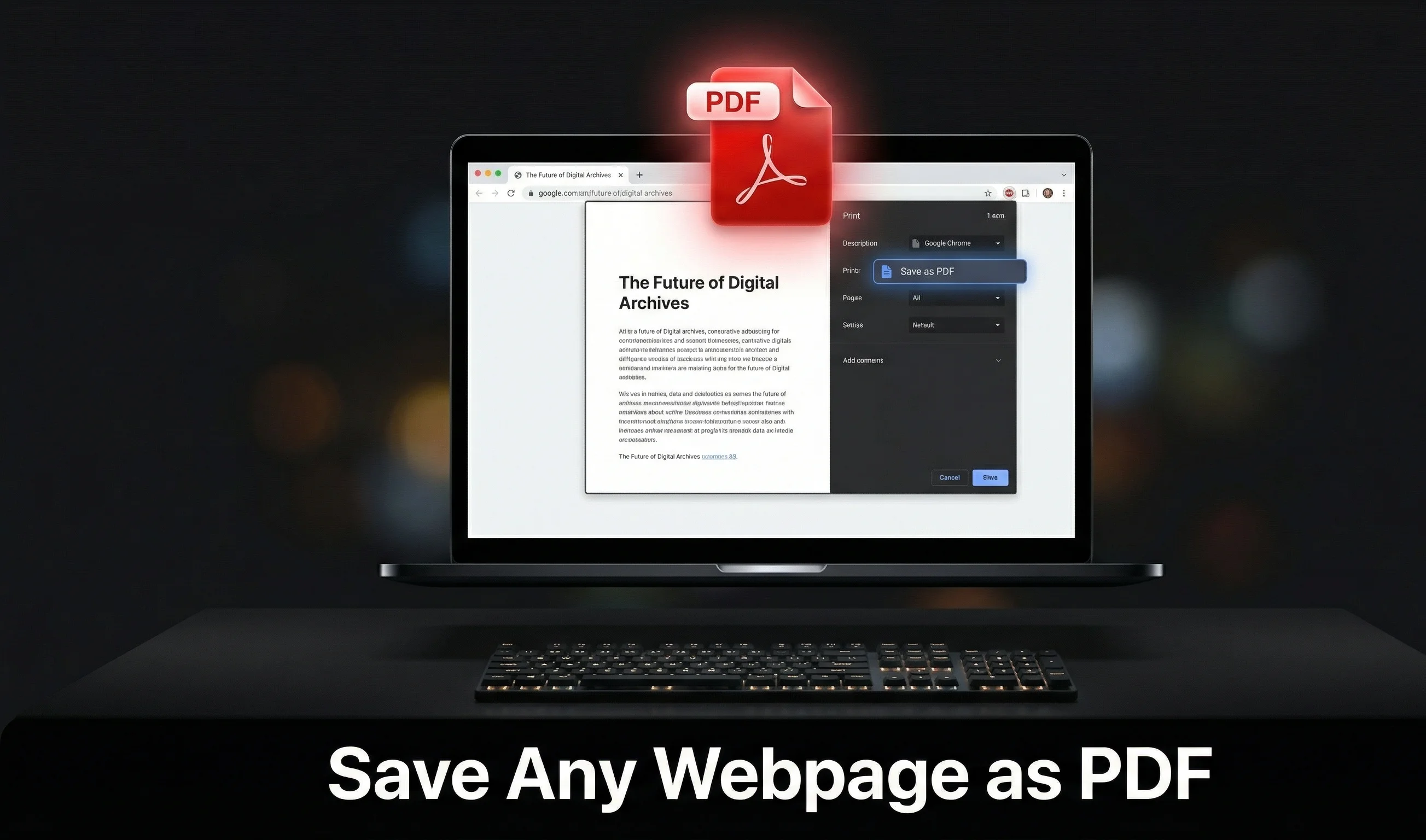
- Press Ctrl + P on Windows or Cmd + P on Mac. This opens the Print window.
- In the "Destination" box, click the dropdown and select Save as PDF.
- Click the Save button.
- Choose where to save the file on your computer and click Save again.
That is it! Your PDF will be saved in seconds. This is the quickest answer to how do you save a web page as a PDF on a desktop or laptop.
Bonus tip: In the same Print window, you can change the layout to "Landscape" if the page is very wide, like a table or spreadsheet.
Method 2: How to Save a Webpage as PDF in Mozilla Firefox
Firefox also has a built-in PDF option. The steps are almost the same as Chrome.
Steps:
- Open the webpage you want to save.
- Press Ctrl + P on Windows or Cmd + P on Mac.
- In the Print dialog, look for the printer dropdown and select Save to PDF.
- Click Save.
- Choose your save location and click Save.
Firefox is great at saving text-heavy pages like articles and blog posts. The PDF output is clean and easy to read. This is one of the easiest ways to save web page to PDF without installing anything extra.
Method 3: How to Save a Web Page as PDF in Safari (Mac)
If you use a Mac, Safari gives you two ways to save a webpage as a PDF. The second method gives you a much cleaner result without ads and navigation bars.
Method A — Using Print:
- Open the webpage in Safari.
- Press Cmd + P.
- In the bottom left corner, click the PDF dropdown button.
- Select Save as PDF.
- Name your file and click Save.
Method B — Export as PDF (Cleaner and Recommended):
- Open the webpage in Safari.
- Click on File in the top menu bar.
- Select Export as PDF.
- Choose where to save it and click Save.
Method B is the best way to save a website as PDF on Mac because it removes clutter like menus, ads, and sidebars. You get a nice, clean document.
Method 4: How to Save a Web Page as PDF in Microsoft Edge
Microsoft Edge is the default browser on Windows 10 and Windows 11. It has a very smooth Save as PDF feature that works perfectly.
Steps:
- Open the webpage in Edge.
- Press Ctrl + P to open the Print window.
- In the Printer dropdown, select Save as PDF or Microsoft Print to PDF.
- Adjust any settings you want, like paper size or margins.
- Click Save.
Edge also has a built-in Web Capture tool. Press Ctrl + Shift + S to take a screenshot of the full page. But for a proper PDF file, the Print method above works best and is the recommended way to save the web page as PDF on Windows.
Method 5: Use a Free Online Tool — No Software Needed
What if you are on someone else's computer? Or you do not want to install anything? This is where a free online tool comes in.
Zlvox PDF Suite lets you convert a webpage to PDF online — completely free, no account needed, and your files never leave your browser.
Steps:
- Go to zlvox.com/tools/pdf-suite.
- Paste the URL of the webpage or upload your HTML file.
- Click Convert to PDF.
- Download your PDF file instantly.
This is the perfect solution when you need a reliable website page to PDF converter that is fast and privacy-friendly. Zlvox works on any device — laptop, phone, or tablet — and stores zero data on any server.
How to Save a Webpage as PDF on Mobile
On Android (Chrome):
- Open the webpage in Chrome.
- Tap the 3 dots menu in the top right corner.
- Tap Share.
- Tap Print.
- In the printer dropdown, select Save as PDF.
- Tap the Download button (the PDF icon at the top right).
On iPhone or iPad (Safari):
- Open the webpage in Safari.
- Tap the Share button — the box with an arrow pointing up at the bottom of the screen.
- Scroll down and tap Print.
- Pinch outward on the page preview to turn it into a PDF.
- Tap the Share icon again and choose Save to Files.
Both methods are completely free. Now you know how do you save a webpage as a PDF on any phone or tablet too.
Pro Tips for a Better PDF
1. Turn on Background Graphics
In the Print window, click on "More settings" and turn on Background graphics. This makes sure the colors and images from the website appear properly in your saved PDF.
2. Use Reader Mode First
Some browsers have a "Reader Mode" — look for a book icon in the address bar. Turn it on before saving to get a super clean PDF with no ads, popups, or sidebars. This is a great trick for how to save webpages as PDF without all the clutter.
3. Adjust the Margins
In the Print window, set margins to "None" or "Minimum" to use the full page area and avoid content getting cut off at the edges.
4. Save Only the Part You Need
Highlight and select the text or section you want first. Then press Ctrl + P and choose Selection in the Pages option. This saves only what you selected — not the whole page.
5. Always Check the Preview
Always look at the print preview before clicking Save. A long webpage can sometimes create 30 or 40 pages. You can reduce the Scale percentage to fit more content per page and keep the file smaller.
Quick Comparison: Which Method Should You Use?
- Chrome (Ctrl + P) — Best for everyday use on Windows or Mac. Very Easy. Free.
- Firefox (Ctrl + P) — Best for articles and blog pages. Very Easy. Free.
- Safari Export as PDF — Best for Mac users who want clean output. Very Easy. Free.
- Edge (Ctrl + P) — Best for Windows 10 and 11 users. Very Easy. Free.
- Zlvox PDF Suite — Best for any device, no software needed. Easy. Free.
- Chrome on Android — Best for Android phone users. Easy. Free.
- Safari on iPhone — Best for iPhone and iPad users. Easy. Free.
Frequently Asked Questions (FAQs)
How do you save a web page as a PDF in Chrome?
Press Ctrl + P on Windows or Cmd + P on Mac. In the Destination field, select "Save as PDF" and click Save. Your webpage will be downloaded as a PDF file right away.
How do I save a webpage as a PDF without printing it?
Use the Zlvox PDF Suite online. Paste the URL of the page and it converts it to a PDF without ever opening a print dialog.
How do you save a webpage as a PDF on a phone?
On Android, open Chrome, tap the 3-dot menu, then go to Share and tap Print, then choose Save as PDF. On iPhone, tap the Share button in Safari, tap Print, pinch the preview to open it as a PDF, then save it to your Files app.
Why does my PDF look different from the actual webpage?
Some websites use designs that do not translate perfectly to PDF. To get a better result, turn on "Background graphics" in the print settings. You can also try using Reader Mode before printing for a cleaner output.
Can I save a webpage as PDF for free?
Yes, absolutely. Every major browser — Chrome, Firefox, Safari, and Edge — has a free built-in "Save as PDF" feature. You do not need to pay for any software. The Zlvox PDF Suite is also 100% free with no signup required.
How do I save a web page as PDF on Mac?
In Safari, go to File and click Export as PDF. In Chrome or Firefox on Mac, press Cmd + P and select "Save as PDF" from the printer dropdown. Both methods are free and take less than 30 seconds.
Does saving a webpage as PDF keep the images?
Yes, images are included in the PDF by default. If you notice images missing, make sure "Background graphics" is turned on inside your print settings before saving.
How to save a web page as PDF in Internet Explorer?
Internet Explorer is very old and no longer supported by Microsoft. We recommend switching to Edge, Chrome, or Firefox. All three have a free and easy Save as PDF feature built in.
Final Thoughts
Now you know exactly how to save a web page as a PDF — on any device, in any browser, for completely free. Whether you are on Windows, Mac, Android, or iPhone, there is a simple method that works for you.
The quickest method for most people is pressing Ctrl + P and selecting "Save as PDF." If you want more control or a cleaner result without any software, try the free Zlvox PDF Suite — it works on every device with zero signup and zero data stored.
Bookmark this page and share it with anyone who asks how do you save a webpage as a PDF. Once you know the steps, it only takes a few seconds!
Written by the Zlvox Team · Last updated: April 2026