The Best Free Online Image Converter in 2026 – No Signup, No Nonsense
Let's be honest for a second. You just want to convert a PNG to a JPG. Maybe you need to shrink a WebP before uploading it to a platform that still refuses to support modern formats. It should take ten seconds. But somehow, every "free" image converter online manages to turn that ten-second task into a three-minute ordeal — forced account creation, a countdown timer before your download starts, and so many ads you're not even sure where to click. Sound familiar?
This post is for people who are tired of that. We're going to break down why image format conversion actually matters, what to look for in a good free tool, and why Zlvox Image Studio has quietly become one of the cleanest options available right now — no fluff, no signup, no drama.
Why Image Formats Still Matter (More Than You Think)
It's 2026 and you'd think we'd have one universal image format by now. We don't — and that's actually fine, because different formats exist for genuinely different reasons. The format you choose can be the difference between a webpage that loads in under a second and one that crawls at four. It can mean whether your logo has a clean transparent background or an ugly white box around it. It can affect whether your photo prints beautifully or comes out pixelated and dull.
Here's what each major format is actually good for:
JPEG (JPG)
JPEG is the old reliable. It's been around since the early 90s and is still the most widely supported image format on the planet. It uses lossy compression, which means it throws away some image data to keep file sizes small. For photographs and complex images with lots of colors and gradients, JPEG is excellent. The trade-off is that it doesn't support transparency, and if you compress it too hard, you'll start seeing those blocky artifacts around edges. Still, for web photos, email attachments, and anything that doesn't need a transparent background, JPEG is your friend.
PNG
PNG is what you reach for when quality and transparency matter more than file size. It uses lossless compression — meaning no image data is thrown away — which makes PNG files noticeably larger than JPEGs but pixel-perfect in quality. Logos, icons, screenshots, graphics with text — anything that needs sharp edges and possibly a transparent background should be PNG. The only real downside is that PNG files can get pretty large, which is why people often want to convert them before uploading to a website.
WebP
WebP is Google's answer to the question "what if we made something better than both JPEG and PNG?" And honestly, they did. WebP supports transparency like PNG but can achieve file sizes that are 25 to 35 percent smaller than an equivalent JPEG. It also supports animation like GIF but at a fraction of the file size. The problem historically was browser support — older systems and some legacy software just didn't recognize WebP. That's largely a non-issue now in 2026, but you'll still occasionally run into a platform or client that needs a JPG instead, which is why converting from WebP to JPEG or PNG is still a common task.
GIF
GIF has had a bizarre second life as the internet's favorite reaction format. Technically it's an ancient format with a limited 256-color palette that makes it terrible for photographs. But for short looping animations, memes, and reaction clips, nothing has replaced it culturally. The format just refuses to die, and so the ability to convert to and from GIF remains genuinely useful in 2026.
What Actually Makes a Good Free Image Converter?
Not all free tools are created equal. A lot of sites calling themselves "free image converters" are free in the way a casino is free to enter — they get something out of you one way or another. Here's what actually separates a good tool from a bad one.
Privacy and Data Handling
This one is huge and most people don't think about it until it's too late. When you upload an image to a random converter site, where does that image go? Is it stored on their servers? For how long? Is it being used for anything? A lot of these sites have vague privacy policies that essentially say "we might keep your data indefinitely." If you're converting personal photos, screenshots of sensitive documents, or anything you wouldn't want a stranger's server to hold onto — you need to know what happens to your files.
The gold standard is either fully client-side processing (the conversion happens in your browser and the image never leaves your device) or immediate server-side deletion after download. Anything less than that should make you pause before uploading.
No Forced Signup
You should never have to create an account to convert a file you already own. Period. Any tool that gates basic functionality behind an email address is making a business decision that prioritizes their marketing list over your experience. The best tools just let you open the page, drop your file, and get your converted image out the other side.
Quality Control
A lot of browser-based converters use something called the Canvas API to process images — it's built into every browser and requires no server. The problem is Canvas has a reputation for inconsistent color handling and tends to re-encode images at the same quality rather than actually compressing them meaningfully. You end up with a "converted" file that's barely any smaller than the original. Server-side processing with a proper image library typically gives you much better, more predictable results.
Batch Processing
If you only ever need to convert one image at a time, fine. But most people who regularly work with images — designers, bloggers, e-commerce managers, developers — need to convert multiple files in one go. A converter that makes you repeat the process for every single file is going to eat your afternoon.
Extra Features That Actually Help
The best image converters don't just change the format — they let you resize, compress, apply basic adjustments, strip EXIF metadata, and add watermarks all in the same workflow. Getting all of that without switching between five different tools is a genuine time-saver.
Introducing Zlvox Image Studio – The Free Image Converter That Actually Respects You
Zlvox Image Studio is the image conversion tool inside Zlvox — a platform built in Pakistan that's been quietly stacking up high-quality free developer and productivity tools since its launch. The whole philosophy of Zlvox is that free tools should be genuinely free, fast, and private. No sign-up walls. No ads disguised as buttons. No dark patterns. Just tools that work.
The Image Studio hits every mark on the checklist above, and then some.
Format Support That Covers Everything You Need
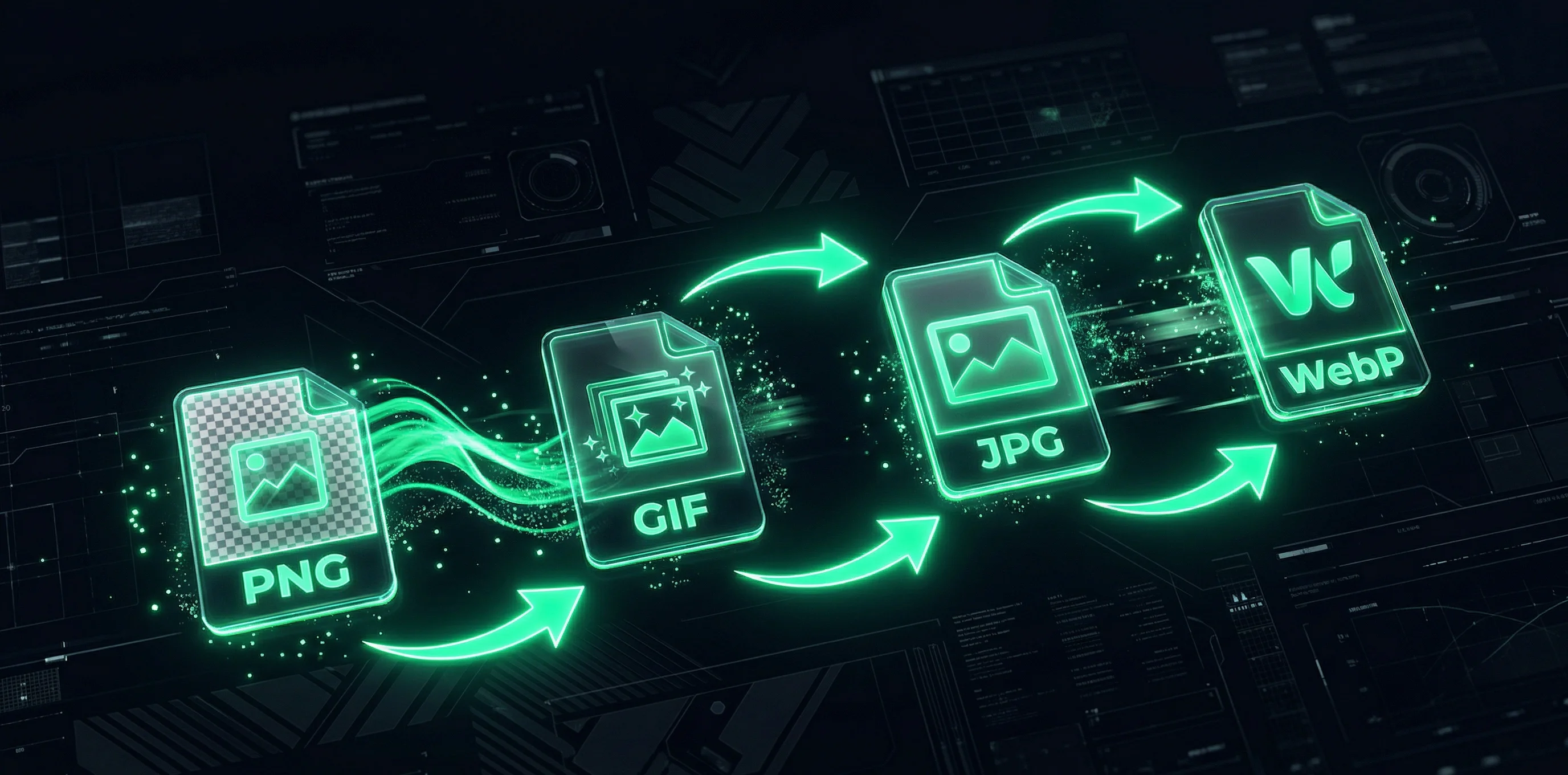
Zlvox Image Studio handles JPG, PNG, WebP, and GIF — both as input and output. You can go from any format to any other in one step. Got a batch of PNG assets you need as WebP for your site? Done. Have a WebP photo a client sent over that needs to go back to JPEG? Two clicks. The format switching is instant and the quality output is clean.
Server-Side Processing with PHP GD – Not Just Canvas
Here's something that actually sets Zlvox apart from a lot of browser-based converters: Image Studio processes your images server-side using PHP's GD library rather than the browser's Canvas API. This matters because GD handles color profiles properly, applies genuine compression (not just re-encoding), and produces consistent results regardless of what device or browser you're using. Your converted files will actually be smaller, not just differently formatted. And as for privacy — Zlvox states clearly that files are processed and immediately deleted after download. They're not stored, not analyzed, not retained.
Quality Slider with a Sweet Spot That's Actually Explained
The quality slider goes from lossless all the way down to aggressive compression, and Zlvox even tells you what the sweet spot is: 80 to 85 percent is visually lossless for most viewers while meaningfully reducing file size. For print or archival use, go 95 and above. For social media thumbnails where speed matters more than perfection, 70 to 75 gets the job done. That kind of practical guidance in the tool itself is the mark of something built by people who actually use it.
Smart Resize with Social Media Presets
The resize feature gives you three modes — Fit, Fill, and Stretch — with an aspect ratio lock so you don't accidentally squish your images. But the genuinely useful part is the social media presets: Instagram, Facebook, X (formerly Twitter), and YouTube are all baked in as one-click options. If you're a content creator or social media manager, that alone saves a meaningful amount of time every week.
12+ Filters for Quick Edits Without Opening Photoshop
Image Studio ships with more than twelve filters: Black and White, Sepia, Negative, Blur, Sharpen, Edge Detection, Emboss, Vintage, Cool, Warm, and Sketch. These are all processed server-side via GD, which means they're consistent and predictable. None of this replaces a full photo editor, obviously — but for quick stylistic adjustments before posting or sharing, not having to open a heavy desktop application is a win.
Brightness, Contrast, and Saturation Adjustments
Beyond filters, there are proper adjustment sliders for brightness, contrast, and saturation. Crucially, Zlvox notes these are non-destructive — your original file is never touched. You're always working on a processed copy, which means you can tweak, preview, and re-download without worrying about ruining your source image.
Watermarking with Positioning Control
If you share original photos or creative work online, watermarking before distribution is a smart habit. Image Studio lets you add custom text watermarks with nine-point grid positioning (top-left, top-center, top-right, middle, and so on through bottom-right) and opacity control from zero to one hundred percent. It's not a full-featured watermarking suite, but for day-to-day use it's exactly what most people need.
EXIF Metadata Stripping
EXIF data is the invisible layer of information baked into your photos — GPS coordinates of where the shot was taken, camera model, timestamp, lens settings. That's useful for your personal archive. It's potentially a privacy problem when you share photos publicly. Zlvox Image Studio includes a one-checkbox option to strip all EXIF metadata before download. It also trims a few kilobytes off the file size as a bonus, which is never unwanted.
Rotation and Flip
Rotate in 90-degree increments, flip horizontal or vertical, and optionally auto-orient based on the EXIF orientation flag. This last one is surprisingly useful — a lot of photos taken on mobile devices are stored sideways and have an EXIF tag telling software how to display them correctly. When you strip EXIF for privacy, the auto-orient feature makes sure the image is actually rotated correctly before the metadata is removed.
Batch Processing Up to 50 Images Per Day
Image Studio supports batch processing — you can load and convert multiple images in a session rather than doing them one by one. The daily limit is 50 images per session, which is more than enough for most personal and professional use cases without ever hitting a paywall. And because there's no account, that limit resets cleanly.
20MB File Size Support
The maximum file size is 20MB per image, which covers the vast majority of real-world use cases. High-resolution photos from modern smartphones and cameras typically fall under this limit unless you're shooting in RAW-equivalent formats. For web images, social media assets, and most design work, 20MB is more than enough headroom.
Who Is Zlvox Image Studio Actually For?
Honestly? Most people who spend time online. But let's get specific.
If you run a blog or content site, you're probably uploading images regularly and you know how much image file size affects page speed. Converting to WebP, compressing to the right quality level, and stripping unnecessary EXIF data before every upload sounds tedious — but with a tool like this, it becomes a ten-second step in your workflow instead of a project.
If you're a freelance designer or developer, you likely deal with clients who send files in the wrong format constantly. A PSD export as TIFF when you needed PNG, a WebP asset that the client's old CMS won't accept, a JPEG that needs to be resized for three different social platforms. Having a reliable, fast converter bookmarked means you're not wasting billable time on format gymnastics.
If you're a small business owner managing your own social media and product listings, image resizing and compression is a constant low-level headache. The social media presets and batch support in Zlvox Image Studio are genuinely designed for this use case.
And if you're just a regular person who occasionally needs to convert an image without creating an account or sitting through a thirty-second countdown before your download starts — this is the tool you should have bookmarked.
How to Convert an Image with Zlvox Image Studio – Step by Step
The process is about as simple as it gets, but here's the full walkthrough so you know exactly what to expect.
First, head to zlvox.com/tools/image-converter. No account, no login page, no popup asking for your email. The tool loads immediately.
Drop your image into the upload area or click to browse. Accepted input formats are JPG, PNG, WebP, and GIF, up to 20MB. Once your image is loaded, you'll see a preview on the left side of the studio.
Choose your output format from the Format tab — JPG, PNG, WebP, or GIF. If you're converting for web use, WebP is almost always the right answer for photographs and complex graphics. PNG is better for logos and anything with transparency. JPG is the safe default for maximum compatibility.
Adjust the quality slider. For most web use, somewhere between 80 and 85 is the sweet spot Zlvox recommends. If you need the smallest possible file, go lower. If you need near-lossless quality, go higher.
Use the Resize tab if you need to change dimensions. Toggle the aspect ratio lock, enter your target width or height, and pick a resize mode. Hit one of the social media presets if you're targeting a specific platform.
Apply any filters or adjustments from the Filters and Adjust tabs. These are entirely optional — if you just need a format conversion with no other changes, you can skip these entirely.
If you want to strip EXIF metadata before downloading, check that box. It's good practice for any image you're sharing publicly.
Hit the Process button. The conversion happens server-side, typically in under a second for most file sizes. Once it's done, you'll see the output preview alongside stats showing original size, new size, and how much was saved. Hit Download and you're done.
That's it. The whole thing takes less than a minute for a single image, and batch mode speeds that up considerably when you're working with multiple files.
Zlvox Is More Than Just an Image Converter
Worth mentioning: Image Studio is just one of over twenty-five tools available on Zlvox. The platform also includes a PDF Suite for merging, splitting, and compressing PDFs; a JSON Flattener for developers working with nested data; a QR Code Generator; a Steganography tool for hiding messages inside images with XOR-256 encryption; a Dummy Data Generator that can spit out millions of rows of fake data for testing; an AI Humanizer; a Temporary Email tool; a Reddit Search engine with AI-generated replies; and more.
Everything on Zlvox is free, requires no account, and is built with the same philosophy: fast, private, no bloat. The platform even publishes a Manifesto explaining why they built it this way — worth a read if you care about how developer tools should work.
Final Thoughts
If you've been tolerating bad free image converters because you assumed there was nothing better without paying — you were wrong, and now you know. Zlvox Image Studio gives you format conversion, compression, resizing, filters, adjustments, watermarking, EXIF stripping, and batch processing, all for free, all with no account required, and all with server-side processing that actually produces clean, properly compressed output.
It's rare to find a free tool that's this complete without some catch buried in the fine print. Zlvox's catch seems to be that they just genuinely want to build good tools. They're a team based in Pakistan with a 99+ Lighthouse performance score, zero server tracking pixels, and a product that's clearly made by people who use it themselves.
Bookmark it. The next time someone sends you a file in the wrong format, you'll be glad you did.