How to Compress PNG Online for Free — No Upload, No Signup (2026)
You have a PNG image. It is big. Like, really big. You try to send it to someone and your phone says "file too large." You try to upload it to a website and it just… spins forever.
Sound familiar?
Don't worry. This happens to everyone. PNG files are known for being high quality — but that quality comes with a price: huge file sizes. The good news is that you can compress a PNG file in seconds, completely free, without installing anything, and without even creating an account.
This guide will show you exactly how to do that. Step by step. No technical knowledge needed.
What Does "Compress PNG" Actually Mean?
Before we jump into the how, let's quickly understand the what.
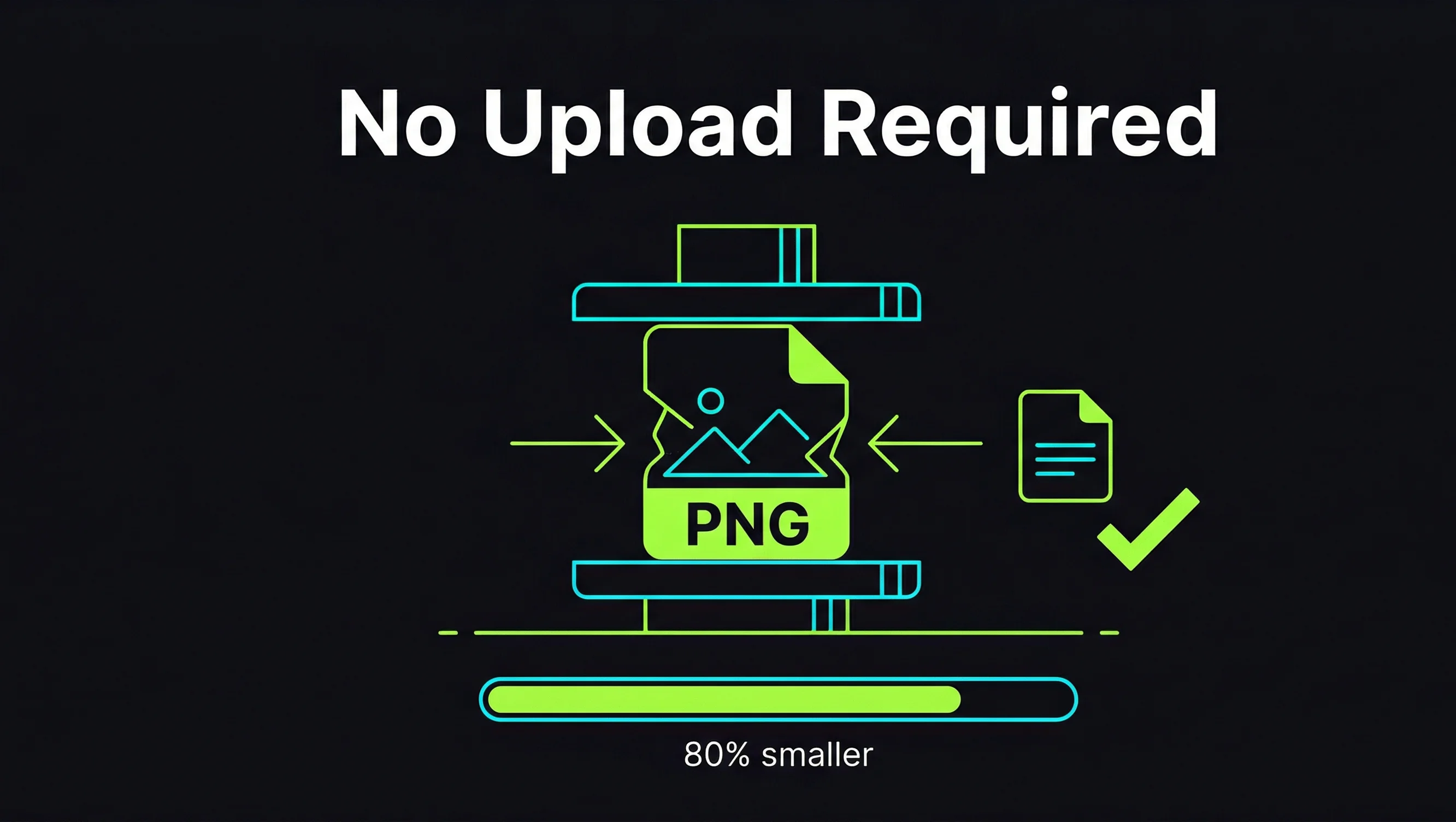
When you compress a PNG image, you are basically making the file smaller in size — without making it look bad. Think of it like folding a big blanket. The blanket is still the same blanket. It just takes up less space in the drawer.
Compression works by removing unnecessary color data and redundant pixel information that your eyes honestly cannot even notice. The result? A smaller file that looks almost identical to the original.
A 3MB PNG can often be compressed down to 600KB or even less — and most people cannot tell the difference just by looking at it.
Why Should You Compress PNG Files?
Here are the most common reasons people need to compress their PNG files:
- Website loading speed — Large images slow down websites. Google actually ranks slower websites lower in search results. Compressing images makes your site faster.
- Email attachments — Most email providers have a file size limit. A compressed PNG is much easier to send.
- Social media uploads — Platforms like Instagram, Twitter, and LinkedIn often re-compress your images automatically if they are too big. Compressing first gives you more control.
- Saving storage space — If you have hundreds of PNG files on your phone or computer, compressing them saves a lot of storage.
- Faster file sharing — Smaller files upload and download faster on WhatsApp, Google Drive, and anywhere else.
The Problem with Most PNG Compressor Tools Online
Here is something most blogs won't tell you.
Almost every free online PNG compressor you find on Google has at least one of these problems:
- They upload your image to their server — which means your private photos are sitting on someone else's computer
- They add watermarks to your compressed image unless you pay
- They ask you to create an account or sign up with your email
- They show you 10 ads before you can even download your file
- They have a file size limit like "max 1MB" which is useless
These are real frustrations. And honestly, you deserve better.
The Best Way to Compress PNG in 2026 — Right in Your Browser
Here is the thing most people do not know: modern browsers are powerful enough to compress images entirely on your device. No server needed. No upload needed. Your image never leaves your computer or phone.
This is exactly how the Zlvox Image Studio works.
It runs completely in your browser. You drop your PNG in, adjust the quality level, and download the compressed version — all without your file ever touching any server. Zero uploads. Zero tracking. Zero watermarks.
Step-by-Step: How to Compress a PNG Using Zlvox
Follow these simple steps. It takes less than one minute.
Step 1 — Open the Tool
Go to zlvox.com/tools/image-converter in any browser on your phone or computer. No download, no installation, nothing.
Step 2 — Upload Your PNG
Click the upload area or just drag and drop your PNG file into it. The tool accepts files up to 20MB. Most PNG files are well under that limit.
Step 3 — Choose PNG as Output Format
In the "Output Format" section, select PNG. This makes sure your compressed file stays in PNG format.
Step 4 — Adjust the Quality Slider
You will see a quality slider. By default it is set to 85%. This is actually the sweet spot for most images — the file gets significantly smaller but the image still looks sharp and clean.
If you want even smaller file size, try dropping the quality to 70% or 75%. For most logos, screenshots, and graphics, you honestly cannot tell the difference.
Step 5 — Click Process Image
Hit the "Process Image" button. It takes about one second. You will see the original file size and the new compressed size right there on screen.
Step 6 — Download Your Compressed PNG
Click the Download button and your compressed PNG is saved to your device. Done. No signup. No watermark. No tricks.
What Quality Setting Should You Use?
This is the question everyone asks. Here is a simple guide:
- 95% quality — Almost no compression. Use this for print-quality images or when you absolutely cannot afford any quality loss.
- 85% quality — The sweet spot. Great for websites, blogs, and social media. Smaller file, still looks great.
- 75% quality — More compression. Good for thumbnails, previews, and background images where sharpness is less important.
- 60% quality — Heavy compression. Use only when file size is the top priority, like very slow internet connections.
For most people reading this, just leave it at 85% and you will be happy with the result.
How Much Can You Actually Compress a PNG?
Real numbers from real tests:
- A 4.2MB screenshot PNG → compressed to 890KB at 85% quality
- A 1.8MB logo PNG → compressed to 310KB at 80% quality
- A 6MB photograph saved as PNG → compressed to 1.1MB at 85% quality
In most cases, you can expect to reduce your PNG file size by 60% to 80% without any visible quality loss to the human eye.
PNG vs WebP — Should You Switch Formats Instead?
Quick tip: if file size is your main concern and you are using the image on a website, consider converting your PNG to WebP format instead.
WebP is a modern image format that gives you even smaller file sizes than compressed PNG — usually 25 to 35 percent smaller — while keeping the same visual quality. All modern browsers support WebP in 2026.
The same Zlvox Image Studio lets you convert PNG to WebP in the same exact steps. Just select WebP as your output format instead of PNG.
Is It Safe to Compress PNG Online?
This is a great question and the answer depends on which tool you use.
Most online tools upload your image to their server to process it. If your PNG contains sensitive information — a scanned document, a private photo, a business screenshot — this is a real privacy risk.
With Zlvox, the processing happens entirely inside your browser using your own device's power. Your image is never sent anywhere. It never touches any server. This is genuinely private compression.
Frequently Asked Questions
Can I compress multiple PNG files at once?
Yes. Zlvox Image Studio supports batch processing. You can upload multiple files and compress them all in one go without doing them one by one.
Will compressing a PNG make it blurry?
At quality settings of 80% and above, no. The image will look sharp and clear. Only at very low quality settings (below 60%) might you start to see some quality loss, especially in images with lots of fine detail or gradients.
Can I compress a PNG on my phone?
Yes. Zlvox works on any device — iPhone, Android, tablet, laptop, desktop. It runs in your browser so no app download is needed.
Does compressing PNG reduce the image dimensions?
No. Compression only reduces file size, not the actual width and height of the image. If you also want to resize (make it smaller in pixels), use the Resize feature in the tool alongside compression.
Is there a file size limit?
Zlvox Image Studio accepts files up to 20MB. The vast majority of PNG files people need to compress are well under this limit.
Quick Summary
Here is everything in a nutshell:
- PNG files are large because they store high-quality image data
- Compressing PNG reduces the file size without making it look bad
- Most online PNG compressors upload your file to a server — which is a privacy risk
- The best approach in 2026 is browser-based compression — your file never leaves your device
- Zlvox Image Studio does exactly this — free, no signup, no watermark, works on any device
- Quality setting of 85% is the sweet spot for most use cases
- You can typically reduce PNG file size by 60 to 80 percent
Ready to Compress Your PNG?
Stop paying for tools that add watermarks. Stop trusting random websites with your private images. And stop wasting time on tools that make you sign up just to download your own file.
Just open Zlvox Image Studio, drop your PNG in, and download a smaller version in about 10 seconds. That is it.
It is free. It is fast. And your image never leaves your device.