Free QR Code for Business Card — 5 Practical Uses (No Watermark, No Signup)
In 2025, a business card without a QR code is like a shop without a signboard. Whether you are a freelancer in Lahore, a small business owner in Karachi, or a professional in Islamabad, adding a free QR code for your business card is one of the smartest things you can do — and the best part? You do not need to pay a single rupee or even create an account.
In this guide, you will learn exactly how to create a free QR code for your business card with no watermark, plus 5 practical ways to use it that most people in Pakistan are not doing yet.
What is a QR Code on a Business Card?
A QR code (Quick Response code) is a small square barcode that anyone can scan with their smartphone camera. When someone scans it, it instantly opens a link, a phone number, a WhatsApp chat, a website, or anything else you set it to.
Instead of someone typing your website address by hand or saving your number manually, they just point their phone camera at your card — and done. It is fast, professional, and makes a great first impression.
The biggest problem people face is that most QR code tools either charge money, put an ugly watermark on the image, or force you to create an account. That is why a truly free QR code generator with no watermark and no signup is such a valuable find.
How to Create a Free QR Code for Your Business Card (Step by Step)
You can generate a high-quality, watermark-free QR code in under 60 seconds using Zlvox's free QR Code Generator. Here is how:
Step 1 — Open the Tool
Go to zlvox.com/tools/qr-generator in your browser. No account needed. No email required. Just open and go.
Step 2 — Enter Your Information
Type in whatever you want the QR code to point to. This can be your website URL, your WhatsApp number link, your LinkedIn profile, your portfolio, or even a plain phone number. We will cover 5 great options below.
Step 3 — Generate and Download
Click generate and your QR code appears instantly. Download it as a high-resolution image — completely free, with no watermark. You can then send this image to your printer or paste it into your business card design.
That is it. Three steps, under a minute, zero cost.
5 Practical Uses of a QR Code on Your Business Card
Most people just link their QR code to a website and call it a day. But there are much smarter ways to use it, especially for business in Pakistan. Here are 5 practical ideas:
1. Link Directly to Your WhatsApp
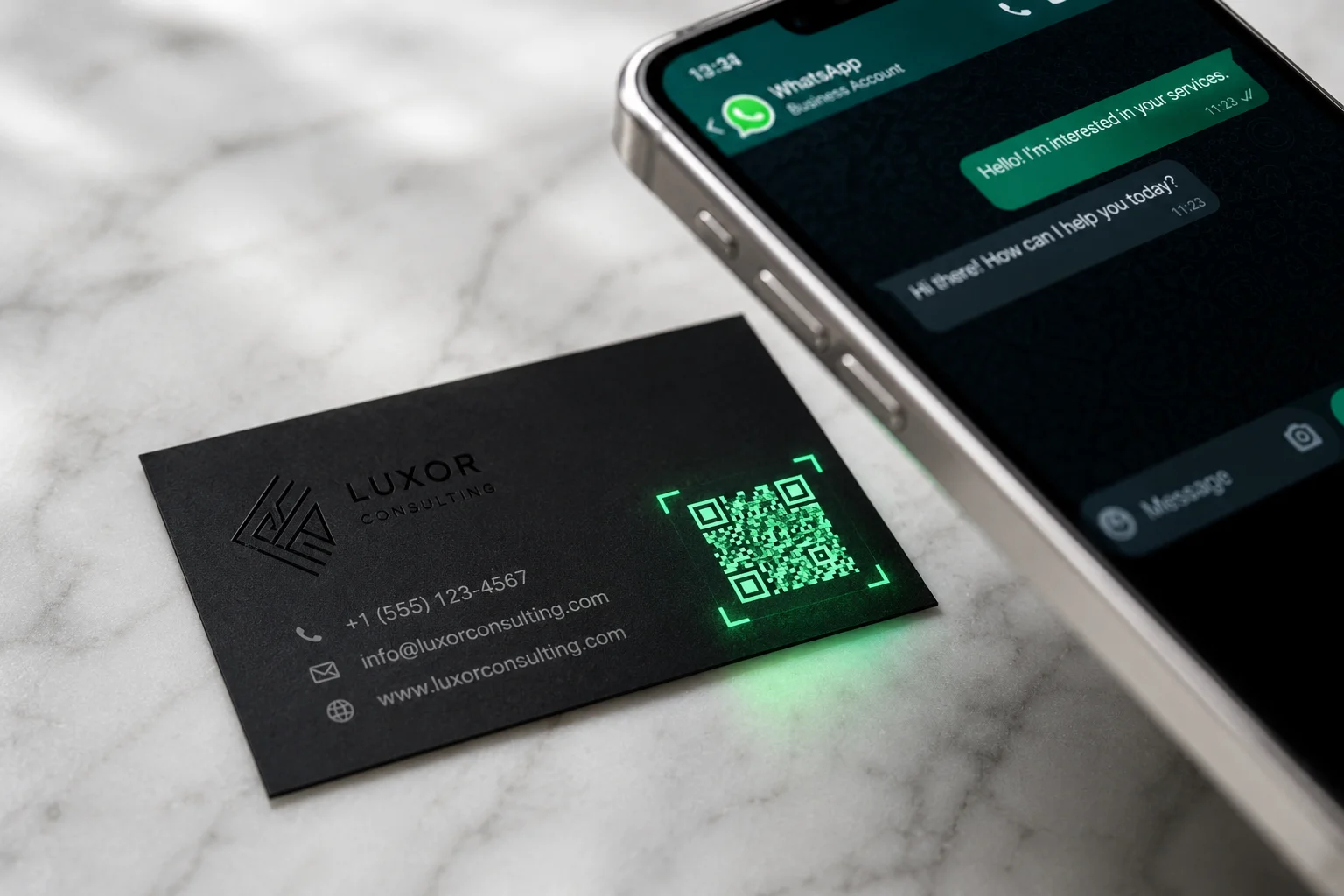
This is probably the most powerful use for Pakistani businesses. When someone scans your card, instead of making them save your number and open WhatsApp manually, your QR code takes them straight into a WhatsApp chat with you — ready to send a message.
To do this, use a WhatsApp link in this format: https://wa.me/923001234567 (replace with your actual number including country code). Paste this URL into the QR code generator and download your code.
This works incredibly well for shopkeepers, service providers, tutors, and anyone who does business on WhatsApp. The customer scans once and is talking to you in seconds.
2. Send People to Your Portfolio or Website
If you are a freelancer — a graphic designer, web developer, writer, or photographer — your business card has limited space to show your work. But a QR code can take the person straight to your full portfolio online.
Instead of hoping they remember to visit your site later, the QR code gives them instant access. You can link to your Behance profile, your personal website, your GitHub, or any other page that shows what you do.
A good tip: create a short, clean URL for your portfolio page so it also reads well in print. Tools like Bitly can help shorten long URLs before you put them in the QR code generator.
3. Share Your Full Contact Details (vCard)
A standard business card can only fit so much information. Name, phone, email — that is usually the limit. But a QR code can store your complete digital contact card (called a vCard), which includes your name, multiple phone numbers, email address, company name, website, and even your physical address.
When someone scans this type of QR code, their phone automatically asks if they want to save the full contact. One tap and you are saved in their phonebook — correctly spelled, with all your details. No more wrong numbers typed in by mistake.
This is especially useful for professionals like doctors, lawyers, consultants, and real estate agents who want their clients to have complete and accurate contact information.
4. Drive Traffic to Your Social Media Page
If your business runs mainly on Instagram, Facebook, or TikTok, your QR code should go there. Printing your Instagram handle on a card is fine, but people are lazy — they might not search for it. A QR code removes that friction completely.
Simply copy your Instagram or Facebook page URL, paste it into the free QR code generator, and download. Now every person who gets your business card can follow you on social media in one scan.
This is a very powerful strategy for restaurants, clothing brands, beauty salons, and any business that relies on social media to attract customers.
5. Link to a Special Offer or Menu
Here is a creative idea that very few businesses in Pakistan are using yet: link your QR code to a special offer page or your product menu.
Imagine handing someone your card at a networking event and telling them: "Scan this for 10% off your first order." That is memorable. That is effective. And it gives you a way to track how well your business cards are actually working.
Restaurants can link to their digital menu. Clothing stores can link to their latest collection. Service providers can link to their current packages and pricing. The QR code on your business card becomes a direct sales tool, not just a contact detail.
Tips for Printing Your QR Code on a Business Card
Creating the QR code is easy. Printing it correctly is where many people make small mistakes. Here are a few things to keep in mind:
Size matters: Your QR code should be at least 2.5 cm x 2.5 cm (about 1 inch x 1 inch) on the printed card. Anything smaller becomes hard to scan, especially with older smartphones.
High resolution is important: Always download the highest quality version of your QR code. A blurry or pixelated QR code will not scan reliably. The Zlvox QR generator gives you a high-resolution download specifically for this reason.
Keep strong contrast: Black QR code on a white background is the most reliable combination. If your card design has a dark background, use a white QR code. Avoid placing the QR code on a patterned or busy section of the design — it needs a clean background to scan well.
Test before printing: Before you send your design to the printer, always test the QR code on at least two different phones. Make sure the link opens correctly and goes to exactly the right place.
Add a small instruction: Not everyone in Pakistan knows what a QR code is or that they can scan it with their phone camera. Adding a small line like "Scan to connect on WhatsApp" or "Scan to visit our website" removes any confusion and increases the chances of people actually using it.
Why You Should Use a Free QR Code Generator with No Watermark
Many online QR code tools look free at first but then put their logo or branding in a corner of your QR code. This looks unprofessional on a business card and can also interfere with scanning.
A free QR code generator with no watermark gives you a clean, professional image that is entirely yours. There is no third-party branding, no hidden fees, and no expiry date on the QR code — it works forever as long as the link it points to is still active.
This is exactly what the Zlvox QR Generator offers. It is 100% free, requires no signup, adds no watermark, and gives you a high-resolution download ready for print.
Frequently Asked Questions
Is it really free? Will my QR code expire?
Yes, completely free. And no, your QR code does not expire. Unlike some paid services that deactivate your QR code when your subscription ends, a standard QR code (called a static QR code) works forever. It is just a coded version of a URL or text — there is no subscription involved.
Can I use the QR code for both print and digital?
Absolutely. The QR code image you download can be used on printed business cards, digital email signatures, social media bios, WhatsApp profile, PDF documents, and anywhere else you like.
Do I need a smartphone to create a QR code?
No. You create the QR code on your laptop or desktop browser. Your customers are the ones who scan it with their smartphones.
What if I change my website or WhatsApp number later?
If you use a static QR code (which is free), changing the destination means you need to generate a new QR code and reprint your cards. If you want the flexibility to change the link later without reprinting, look into dynamic QR codes — though those usually require a paid plan from other services.
Can I scan a QR code without a special app?
Yes. Most modern smartphones — both Android and iPhone — can scan QR codes directly from the built-in camera app. Just open your camera, point it at the QR code, and a link will appear on screen. No extra app is needed.
Final Thoughts
Adding a QR code to your business card is one of the simplest upgrades you can make to how you present yourself professionally. It bridges the gap between a physical card and your digital presence — and in today's world, that bridge is more important than ever.
Whether you link it to WhatsApp, your portfolio, your social media, or a special offer, a free QR code for your business card with no watermark costs you nothing but takes your professionalism to a completely different level.
Ready to make yours? Generate your free, watermark-free QR code right now at zlvox.com/tools/qr-generator — no signup, no cost, no watermark. Done in under 60 seconds.