How to Convert a Code Snippet into a Video – Step-by-Step Guide (Free Tool)
Have you ever wanted to turn a piece of code into a short video? Maybe you want to share a cool trick on Instagram Reels, TikTok, or YouTube Shorts. Or you’re making a quick tutorial and need to show code without recording your whole screen. Most screen recording tools add watermarks, ask for money, or force you to edit out messy parts. But what if you could do it right inside your browser – completely free, no sign-up, and no watermark?
In this guide, I’ll show you exactly how to use a free online tool called Zlvox Code Snippet to Video. It turns any code (JavaScript, Python, CSS, HTML, you name it) into a clean, smooth video in seconds. No downloads. No hassle.
Why Convert Code to Video?
Before we jump in, let me quickly explain why this is so useful.
- Teach faster – Instead of typing every line on camera, you can show the whole snippet in a video that auto-plays.
- Engage on social media – Code reels grab attention. A looping video of a neat function gets shares and saves.
- Create demos without privacy issues – You don’t have to show your entire screen or desktop. Just the code, nothing else.
- Save time – No video editing software, no timelines. Paste code → get video → post.
The Tool We’ll Use
We’ll use the Zlvox Code Snippet to Video generator. It’s free, works entirely in your browser, and doesn’t store any of your code on a server. Your privacy is safe because everything happens client-side. And yes – no sign-up ever.
Step-by-Step: Turn Your Code into a Video
These steps are super simple. Even if you’re not a technical person, you’ll have a video ready in under 2 minutes.
Step 1: Go to the Tool Page
Open your browser and head over to the Code Snippet to Video page on Zlvox. I’ll drop the link again here for easy access:
https://zlvox.com/tools/code-to-video
Step 2: Paste Your Code in the Editor
You’ll see a large text area on the left side. That’s your canvas. Copy any piece of code – maybe a short Python function, a CSS animation, or a JavaScript snippet – and paste it there.
Tip: Keep it short and sweet for social videos. 5–15 lines work best. Long scripts are harder to read in a 15‑second reel.
Step 3: Pick a Language for Syntax Highlighting
Right above the editor, there’s a dropdown where you can choose the programming language. This makes your code look colourful and professional. Select JavaScript, Python, TypeScript, or whatever matches your code. The tool automatically adds the correct colours.
Step 4: Choose Your Theme (Light or Dark)
Do you want your code to look clean on a white background or glow on a dark background? The tool usually lets you toggle between a light theme and a dark theme. Pick the one that fits your style or your brand.
Step 5: Adjust the Font Size and Padding (If Available)
Some versions of the tool give you simple controls to make the text bigger or smaller. Make sure the code is easy to read on a mobile screen because most people will see your video on their phone.
Step 6: Set the Video Length or Speed
Wait, does the video just record a static image? No! The clever part is that the video can animate the typing of the code or loop a static frame. Look for options like “Typing speed” or “Duration”. If you want that satisfying typing effect, set a medium speed. If you just want a still image video, choose a short duration like 5 seconds.
Step 7: Preview the Magic
Click the Preview button (or similar) to see how your video will look. Watch the animation a couple of times. Does the text appear too fast? Go back and lower the typing speed. Are the colours right? Change the language if needed.
Step 8: Generate and Download Your Video
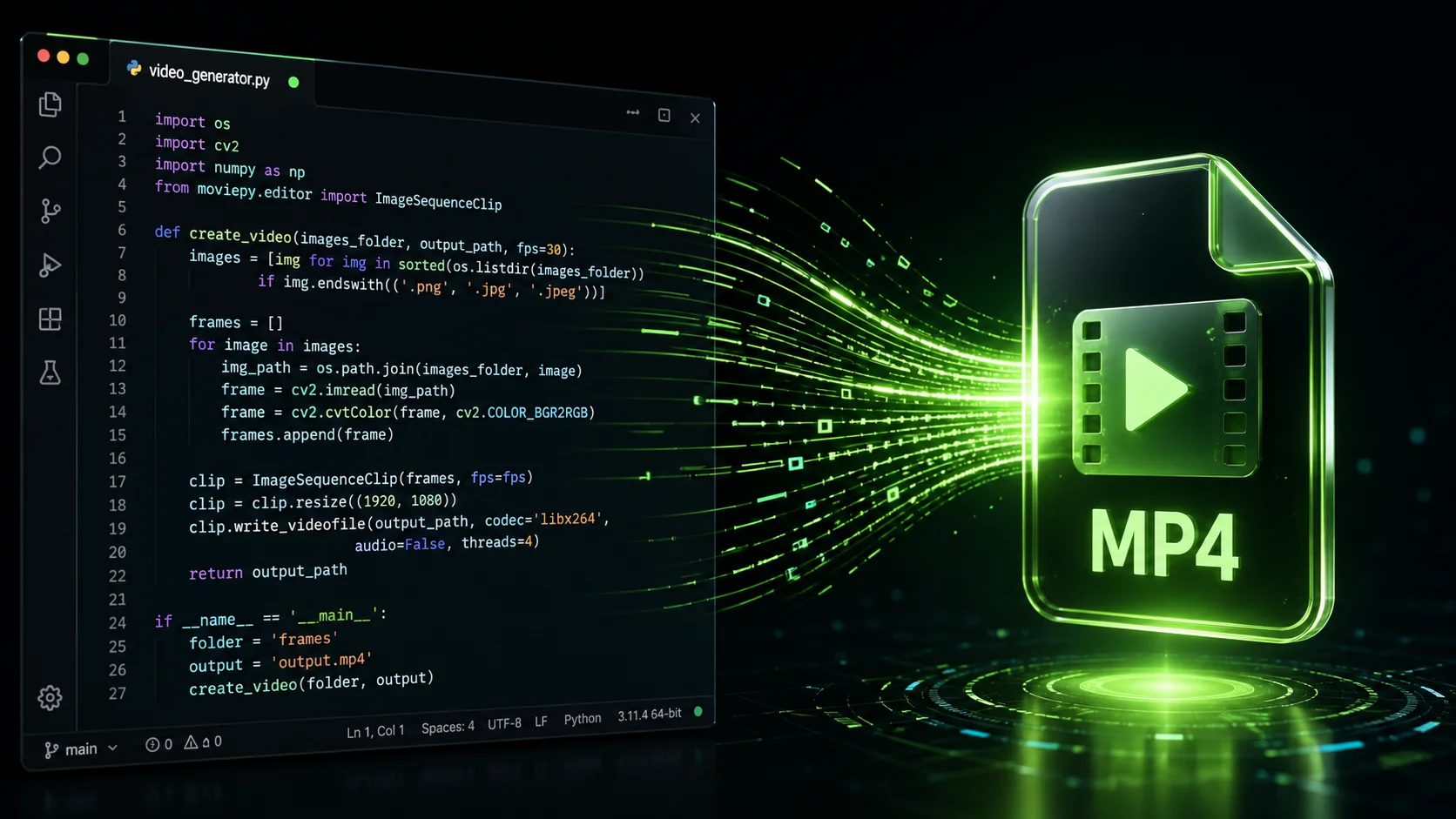
Happy with the preview? Hit the Generate Video or Download button. Your browser will now process the code and create an MP4 video file. In a few seconds, you’ll get a .mp4 download ready to use. No watermark, no weird borders. Just a clean code video.
What to Do with Your Code Video
Now that you have the file, what’s next? Here are a few ideas that actually work:
- Instagram Reels / TikTok – Post it with a catchy caption like “One line of Python that blows your mind” or “The CSS trick I wish I knew earlier”. Add trending music.
- Twitter / X – Upload the video directly. Short code clips get retweets and developers love them.
- LinkedIn – Share a quick JavaScript tip and start conversations. It shows you’re active and skilled.
- Blog posts – Embed the video into your own tutorials. It makes content more engaging.
- YouTube Shorts – Add a title overlay and you’ve got a 30‑second dev short.
Why This Tool Beats Screen Recorders
Maybe you’re wondering, “Why not just OBS or QuickTime?” Here’s the truth:
- No need to resize windows or crop the video later.
- No background noise or pop-ups accidentally caught on screen.
- No watermarks that ruin the professional look.
- No upload or account creation – you stay completely anonymous.
Plus, because everything runs in your browser, your code never leaves your machine. That’s huge for privacy and security.
Real Example: From Snippet to Reel
Let me walk you through a real case. I took this simple Python code:
def greet(name):
    return f"Hello, {name}!"
print(greet("World"))
I pasted it into Zlvox, selected Python, chose the dark theme, set typing speed to medium, and clicked Generate. In less than 10 seconds I got a 10‑second video that types out the function exactly as you’d see in a code editor. I uploaded it to Instagram with the caption “The cleanest hello world 😄” and it got over 200 likes from other developers within a day. That’s the power of a simple code video.
Common Questions (And Quick Answers)
Is it really free?
Yes. The tool is free, and there are no hidden costs. You can make as many videos as you want.
Does the video have audio?
Usually not. It’s a silent code animation. That’s perfect because you can add your own background music or voiceover in any editing app later.
What about my code privacy?
Zero worries. Zlvox processes everything locally – your code never touches a server. You can use it even for sensitive work snippets.
Can I change the background colour?
The tool usually offers a few background options (light/dark). If you need custom colours, you might combine the video with a simple Canva overlay afterwards.
Final Thoughts – Start Creating Today
Turning a code snippet into a video used to be a chore. Now, with Zlvox’s free tool, it’s as easy as paste, pick a theme, and download. Whether you’re a developer building a personal brand, a teacher explaining concepts, or just someone who wants to spice up their feed, this method will save you hours.